

Login and navigation
- PDF
Login and navigation
- PDF
Article summary
Did you find this summary helpful?
Thank you for your feedback!
Log in to Workbench and open selector
Open the Workbench at https://digitizer.app.
Click on Login.
Log in with your e-mail address and the initial password.
Open your desired selector by clicking on the pencil icon or the name.
To edit, deactivate the Live View toggle at the top left.
Overview: Navigation bar

Go to documentation: Open the FoxBase help area (Knowledge Hub including documentation).
Copy selector ID to clipboard: Copies the selector ID to the clipboard.
Save: Saves the work status in the staging environment.
Launch parameters: Setting the language and embed parameters for the selector preview.
Launch: Open the selector preview.
💡Save changes to the selector regularly.
Overview: Workbench areas
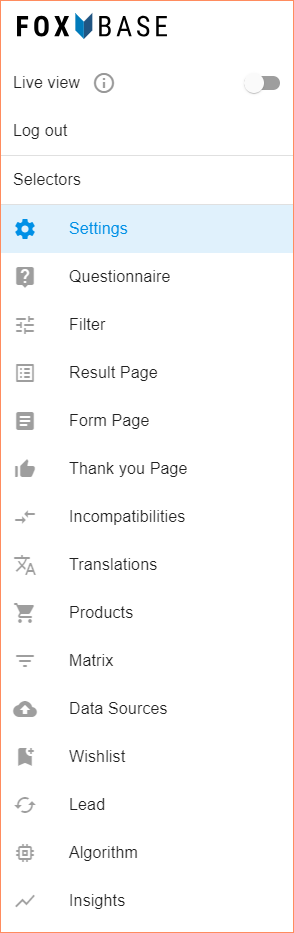
Live view: Switch between editing mode (staging; toggle off) and live view (toggle on).
Log out: Log out of the Workbench.
Selectors: Open the list of available selectors and release the current selector for other users.
Settings: General settings for tracking, questionnaire, color schemes, CSS styling and button labels.
Questionnaire: Create and edit questionnaire.
Filter: Configure filter logic.
Result Page: Create result page.
Form Page: Create contact form.
Thank You Page: Create Thank You Page.
Incompatibilities: Define incompatibilities between the answer options.
Translations: Set translations.
Products: Import products.
Matrix: Configure matrix logic.
Data Sources: Manage data sources (e.g. for e-mail dispatch by zip code).
Wishlist: Create wish list.
Lead: Create e-mail notifications.
Algorithm: Configure algorithm (select recommendation logic, create rules, use AI, define number of recommendations, exclude answer options from the calculation)
Insights: View and download analysis of key figures.
Save selector
Deactivate the Live view toggle.
Click on the Save icon in the toolbar.
.png "settings-save-selector(1).png")
💡The save process does not transfer the data to the live environment. Find out how to publish changes and make them visible to your customers in the related article.
Was this article helpful?