---
title: "Selektor-Bereiche verstecken oder einblenden"
slug: "selektor-bereiche-verstecken-oder-einblenden"
updated: 2025-03-25T16:36:13Z
published: 2025-03-25T16:36:13Z
canonical: "help.foxbase.de/selektor-bereiche-verstecken-oder-einblenden"
---
> ## Documentation Index
> Fetch the complete documentation index at: https://help.foxbase.de/llms.txt
> Use this file to discover all available pages before exploring further.
# Hide or show selector areas
Selector areas such as result page sections, sort groups, questions, answers etc. contain options for **setting the visibility**. These components are subsequently visible or hidden due to
- **user inputs in the questionnaire** or
- **embed parameters**.
> [!NOTE]
> 💡**User input in the questionnaire:** Elements of the **result page** (product sections, top/bottom sections, sort groups) appear depending on the selected answers.
>
> 💡**Embed parameter:** Elements of the **result page** or **questionnaire** appear depending on the parameters set during website integration. The embed parameter is stored both in the workbench and in the snippet for website integration. When using two snippets with different embed parameters, for example, one selector version contains elements that are not visible in the other. Applicable in elements of the **result page** and **questionnaire**.
The setting can be recognized by the blue arrow. The following image shows the section **Questionnaire** with the **embed parameter** setting within the question and answer elements:

**Result page** fields contain options to edit visibility based on both **embed parameters** and **user inputs**:

---
## Influence visibility with user inputs
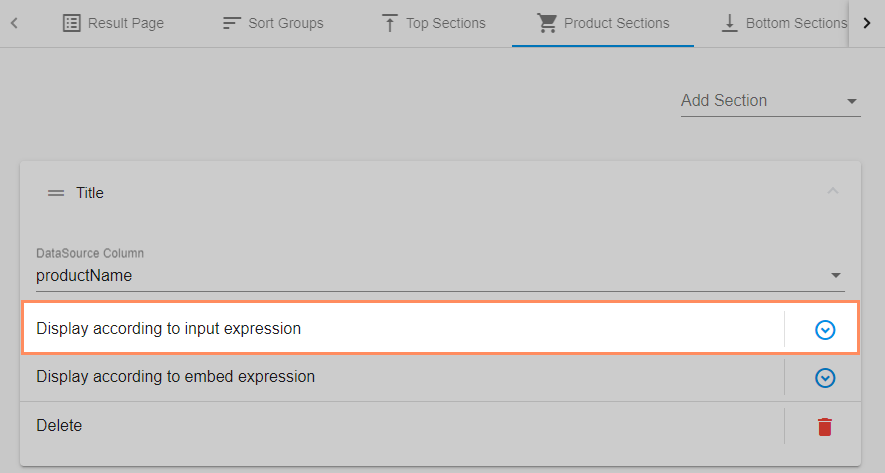
1. Open the **Result Page** area **> Product Sections** or **Top/Bottom Sections** or **Sort Groups**.
2. Click on the **blue arrow** next to **Display according to input expression** in the desired section.
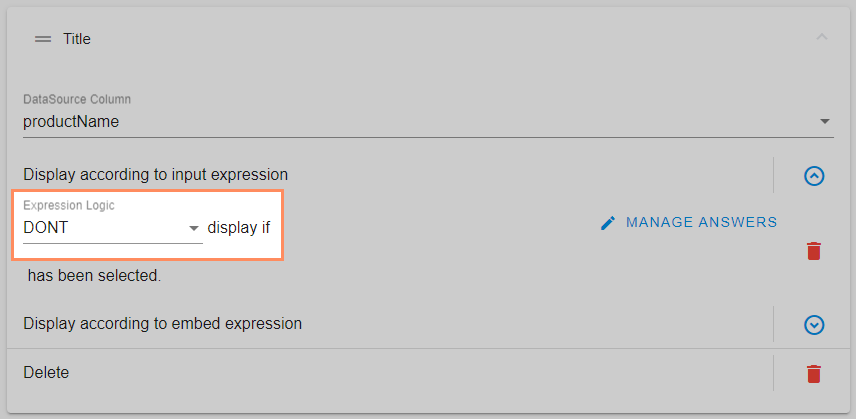
1. Select the **Expression Logic**.
1. **DON'T**: The field **does not** appear when selecting the answer.
2. **DO**: The field appears when the answer is selected.
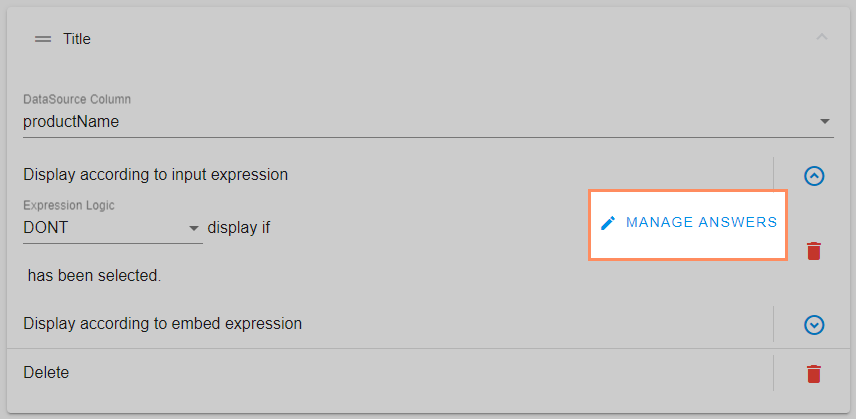
1. Click on **Manage Answers** and select one or more answers.
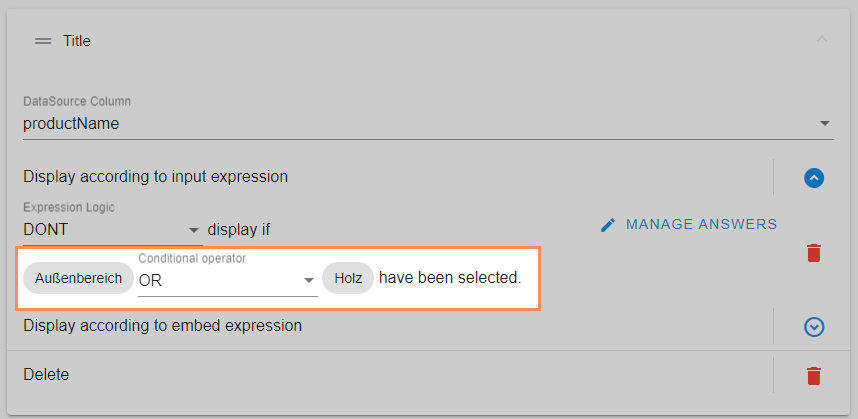
1. When selecting multiple answers: Select the **conditional operator**.
1. **OR**: User selects at least one answer.
2. **AND**: User selects all answers.
---
## Influence visibility with embed parameters
### Configure embed parameters in workbench
1. Open the **Result Page** or **Questionnaire** area.
2. Click on the blue arrow next to the desired section (in Result Page next to **Display according to embed expression**).

1. Select the **Expression Logic**.
1. **EQUALS**: Field appears if parameter applies.
2. **NOT**: Field **does not** appear if parameter applies.
2. Enter the name of the parameter under **Parameter list**.
> [!WARNING]
> ⚠️Do **not** use spaces or special characters in the name. Use **lower case** and separate multiple parameters with a comma and space: *example1, example2*
### Open embed parameters in selector
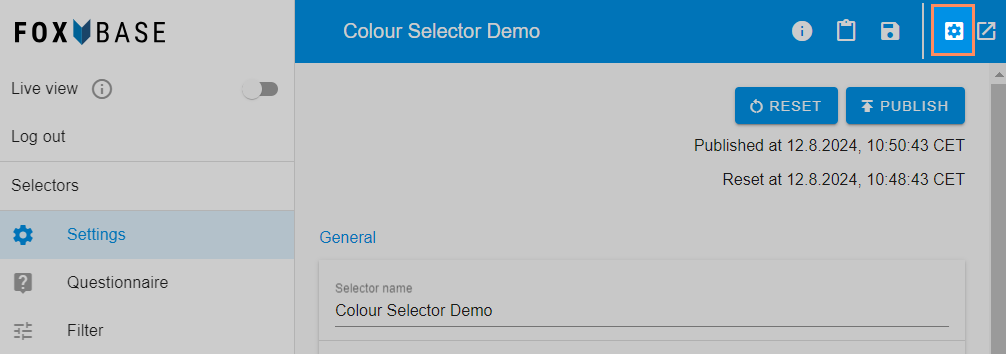
1. Click on the icon **Launch parameters**.
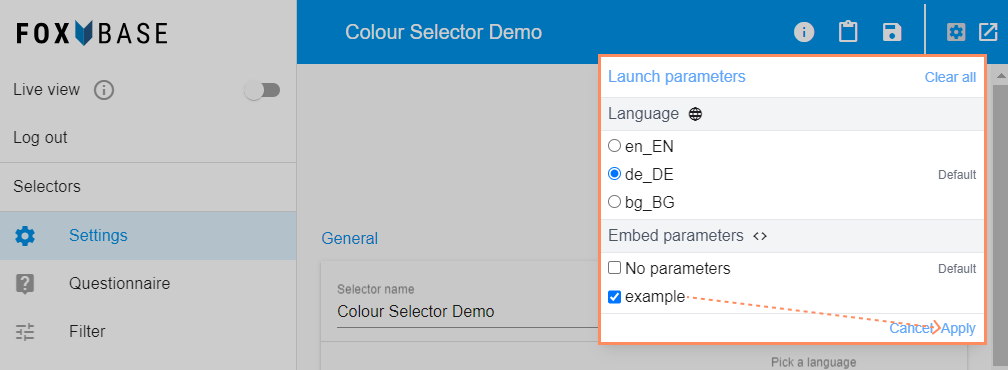
1. Select the parameters and confirm with **Apply**.
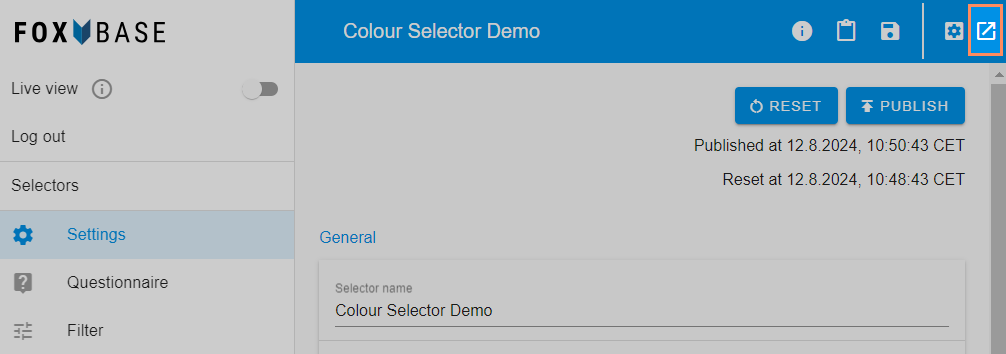
1. Click on the icon **Launch**.
**Questionnaire with embed parameter**

**Questionnaire without embed parameter**

### Insert embed parameter in snippet
1. In the snippet code, add the line **data-embed-parameters="parameter"** as follows:
```xml
```
1. Replace **parameter** with the names of the embed parameters.
```xml
```
> [!NOTE]
> 💡Note the related article for more information on how to use snippets.
### Insert embed parameter in iFrame
1. In the iFrame code, add the line **data-embed-parameters="parameter"** as follows:
```xml
```
1. Replace **parameter** with the names of the embed parameters.
```xml
```
> [!NOTE]
> 💡Note the related article for more information on how to use iFrames.
## Related
- [Integrate selector into website](/selektor-in-webseite-einbinden.md)