---
title: "Selector in Webseite einbinden"
slug: "selektor-in-webseite-einbinden"
updated: 2025-03-25T16:35:56Z
published: 2025-03-25T16:35:56Z
canonical: "help.foxbase.de/selektor-in-webseite-einbinden"
---
> ## Documentation Index
> Fetch the complete documentation index at: https://help.foxbase.de/llms.txt
> Use this file to discover all available pages before exploring further.
# Integrate selector into website
The selector can be **integrated** in **any website or landing page** or in a **CMS. The options are snippet or iFrame integration.**
> [!WARNING]
> **⚠️****FoxBase must activate each selector domain via whitelisting. In this way, the selector is protected against unwanted use by third parties. Request whitelisting from CSM support. It is usually activated within one day. However, please inform us at least one week before the planned go-live.**
---
## **Integrate selector as snippet**
1. **Copy the following code into a text document.**
```xml
```
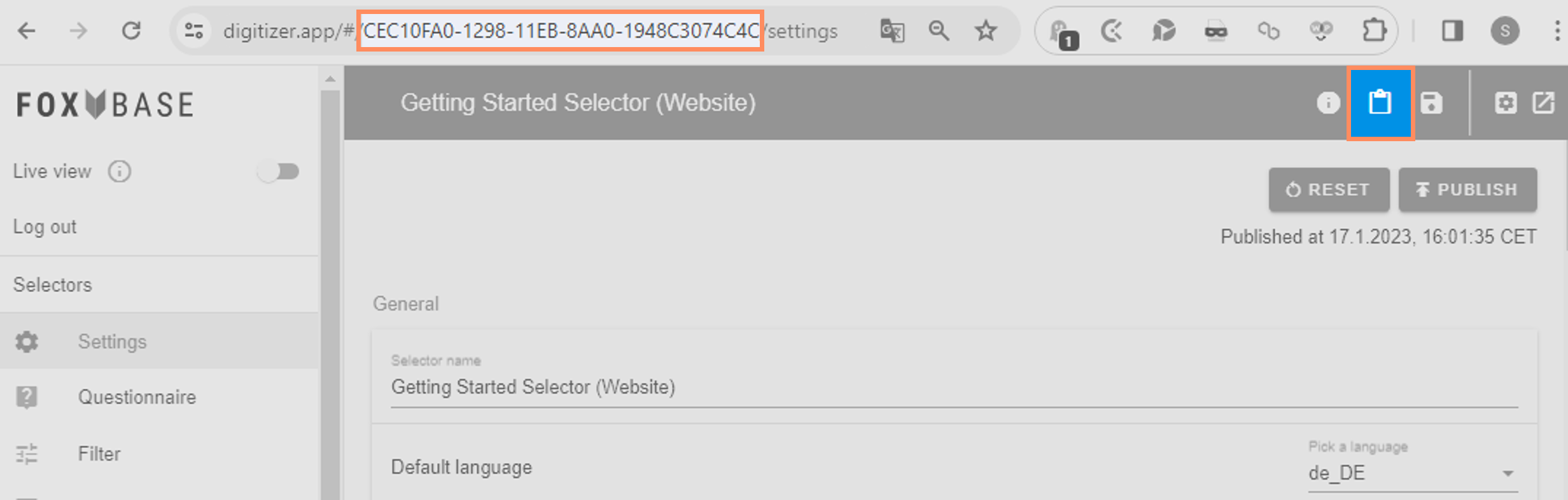
1. **Copy the selector ID either from the URL or by clicking on the Copy selector ID to clipboard icon.**
****
1. **Store the selector ID behind data-selector-id.**
2. **Optional: Change the distance of the selector to the edge of the screen by entering a pixel value after data-scroll-adjust. This is relevant, for example, when using a floating header.**
3. **Change the language of the integrated selector by entering the language parameter after data-lang (e.g. "de_DE****"****, "en_EN****"****, "fr_FR****"** **etc.). You can find your available language entries in the Settings area under General, Default language.**
4. **Place the snippet at the desired location on the website.**
**Example:**
```xml
```
---
## **Integrate selector as iFrame**
1. **Copy the following code into a text document.**
```xml
```
1. **Copy the URL of the live selector and enter it behind src (e.g.** [**https://digitizer.app/selector/#!/24256D40-F530-11EB-86C6-D3DF652D3632/en_EN/**](https://digitizer.app/selector/#!/24256D40-F530-11EB-86C6-D3DF652D3632/en_EN/questionnaire/0)**)**
2. **Optional: Enter an iFrame ID behind iframe id.**
3. **Optional: Enter the selector name after name and title.**
**Example:**
```xml
```
### **Adjust iFrame size**
#### **Adjust height and width manually**
1. **Enter the desired width in percent after width in the iFrame code.**
2. **Enter the desired height in pixels behind height.**
```xml
```
**Alternative code for additional frame customization:**
```xml
```
#### **Automatically adjust height**
**To make the iFrame dynamically adapt to the height of the selector, carry out the following steps:**
1. **Add the following code below the iFrame:**
```xml
```
1. **Replace the element the iframe id with the ID of the iFrame.**
> [!WARNING]
> **⚠️****Do not remove the hashtag (#).**